# Clip Downloader

Kick clips can disappear if a streamer deletes them, so keeping a local MP4 copy is the only way to be sure you can rewatch or repost them later. The Clip Downloader works on any public Kick clip, regardless of which channel it came from.

{% hint style="info" %}
This guide assumes you have a KickBot account with your Kick channel connected.
{% endhint %}

## What it does

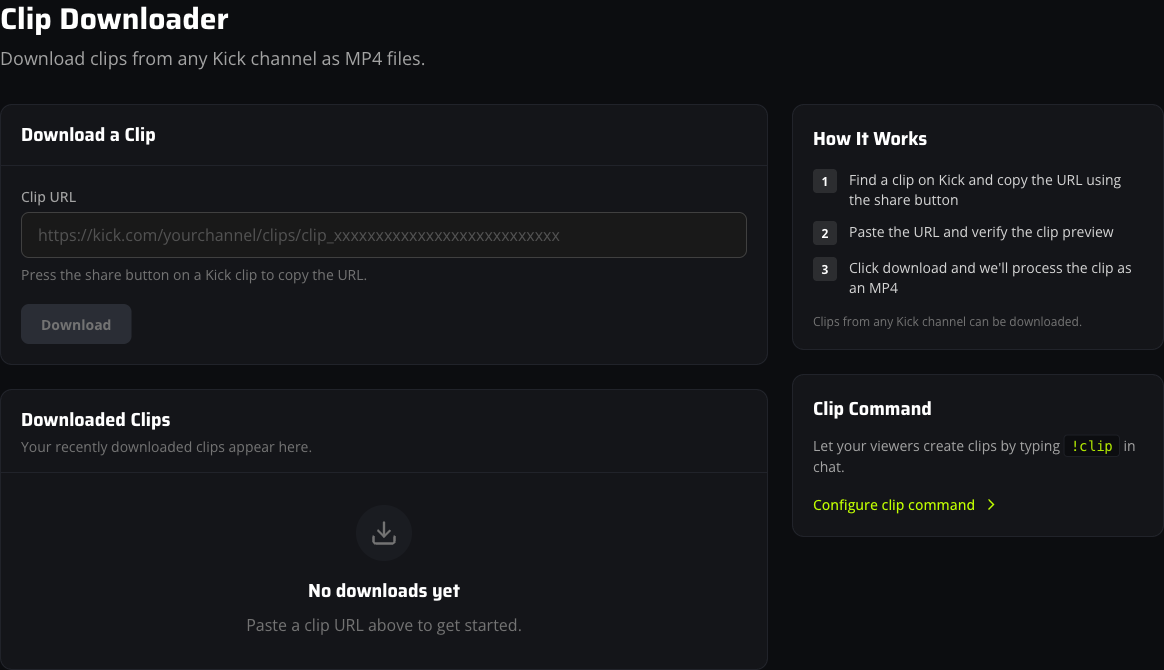
Paste the URL of an existing Kick clip and KickBot pulls down the source video, converts it to MP4, and gives you a download link. Processing happens on KickBot's servers, so you don't have to worry about strain on your own system. Clip downloads are typically ready in seconds

<figure><img src="/files/I4hcwqksY7lHu0bmQC24" alt="KickBot dashboard Clip Downloader page with Clip URL input and Downloaded Clips history"><figcaption><p>The Clip Downloader lives under <strong>Downloads</strong> in the dashboard sidebar.</p></figcaption></figure>

## Download a clip

1. Navigate to [kickbot.com/dashboard/kick-clips](https://kickbot.com/dashboard/kick-clips).
2. On Kick, open the clip you want to save and press the share button to copy its URL. The format looks like `https://kick.com/channel-username/clips/clip_<id>` or the older `?clip=clip_<id>` query style.
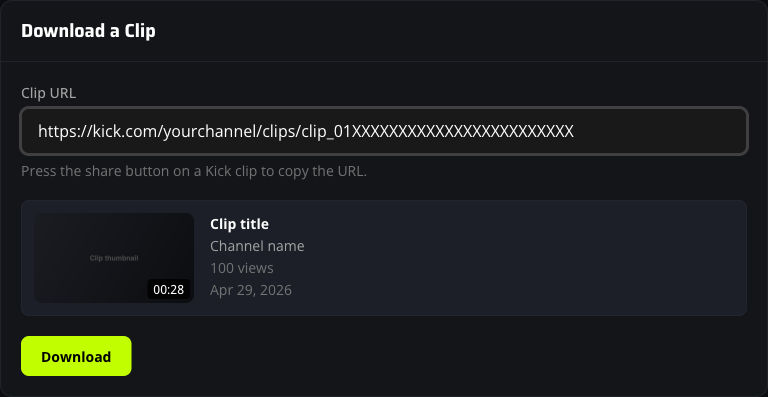
3. Paste the URL into the **Clip URL** box. KickBot pulls the title, channel name, length, view count, and thumbnail from Kick so you can confirm the right clip is queued.
4. Click **Download** to add the clip to the processing queue.

<figure><img src="/files/hLPlQx8QL1OKg5oKa7Qs" alt="Clip Downloader card with a Kick clip URL pasted and the preview thumbnail, title, and channel name loaded"><figcaption><p>The Download button activates once the preview loads. If the clip never previews, the URL is wrong or the clip is no longer on Kick.</p></figcaption></figure>

{% hint style="info" %}
Both clip URL formats Kick uses are supported: the new path style (`/clips/clip_<id>`) and the older query style (`?clip=clip_<id>`). The share button on a Kick clip copies the right format for you.
{% endhint %}

## Watch the queue

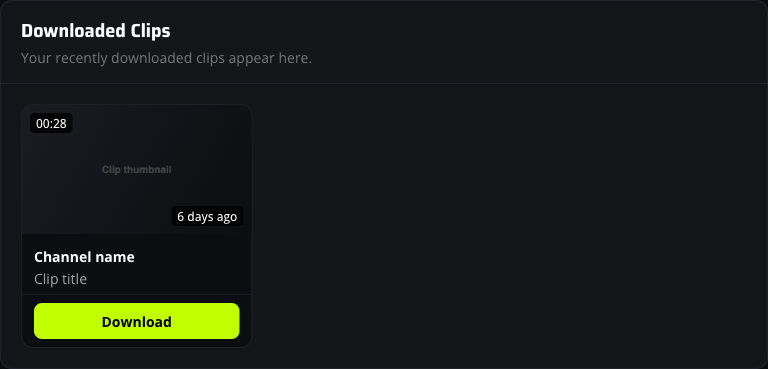
Every queued clip lands in the **Downloaded Clips** section under the input. Cards move through three possible states:

* **Processing.** KickBot is fetching the source video from Kick and packaging it as an MP4. The card shows a green spinner.
* **Complete.** A green **Download** button appears. Click it to save the MP4 to your computer.
* **Failed.** Something went wrong (a private channel, a removed clip, or a Kick CDN issue). Try the clip again, and if it keeps failing, get in touch.

<figure><img src="/files/KY1Uo5v0qlpDXMs2nSSV" alt="A completed Kick clip download card with a green Download button and the clip duration"><figcaption><p>Completed clips show the duration overlay and a relative timestamp for when the download was queued.</p></figcaption></figure>

The page automatically updates the status every couple of seconds while a clip download is in progress, so the **Processing** label flips to **Download** on its own once the file is ready. You do not need to refresh the page.

## If a download is not working

A few common causes:

* **The clip URL is malformed.** The page expects a full Kick clip URL with a clip ID at the end. A channel page or VOD URL will not preview.
* **The clip has been deleted on Kick.** KickBot can only fetch clips that are publicly viewable on kick.com. If the clip page returns an error on Kick itself, it will not download here.
* **The team member does not have permission.** If you manage a team account, the **Clip Downloader** permission has to be on for that team member. The owner can change this from [kickbot.com/dashboard/team](https://kickbot.com/dashboard/team).
* **The download stayed in Processing.** Most clips finish in seconds. If a card sits in **Processing** for more than a few minutes, refresh the page to pull the latest status, then reach out if it is still stuck.

## FAQ

<details>

<summary>How do I download a Kick clip?</summary>

Paste the clip URL into the input on [kickbot.com/dashboard/kick-clips](https://kickbot.com/dashboard/kick-clips) and click **Download**. KickBot processes the file on its own servers and adds a direct MP4 link to the **Downloaded Clips** section once it finishes.

</details>

<details>

<summary>Can I download a clip from any Kick channel?</summary>

Yes. The Clip Downloader works on any public Kick clip, not only clips from your own channel. You only need the clip URL.

</details>

<details>

<summary>What format does the downloaded clip come in?</summary>

An MP4 file, hosted on KickBot's CDN at a unique URL. Click **Download** on the clip card and your browser saves the MP4 locally.

</details>

<details>

<summary>Do I need premium to download clips?</summary>

No. Clip downloading is available on every plan. Premium unlocks separate features like the [VOD downloader](https://docs.kickbot.com/vods/how-to-download-kick-vods) and the customisable [clip command](https://docs.kickbot.com/chat-bot/using-the-clip-command).

</details>

<details>

<summary>How is this different from the !clip command?</summary>

The Clip Downloader saves an existing Kick clip you found on Kick. The `!clip` command lets viewers create a brand new clip during your live stream by typing it in chat. Clipping VODs turns a past stream into a new clip. Each is a separate page in these docs.

</details>

## Need a hand?

Email <support@kickbot.com> or post in the `#support` channel on the [KickBot Discord](https://discord.gg/MAg3gBbc89) if a clip will not download or you have a question we did not cover here.


---

# Agent Instructions: Querying This Documentation

If you need additional information that is not directly available in this page, you can query the documentation dynamically by asking a question.

Perform an HTTP GET request on the current page URL with the `ask` query parameter:

```
GET https://docs.kickbot.com/dashboard/vods/clip-downloader.md?ask=<question>
```

The question should be specific, self-contained, and written in natural language.
The response will contain a direct answer to the question and relevant excerpts and sources from the documentation.

Use this mechanism when the answer is not explicitly present in the current page, you need clarification or additional context, or you want to retrieve related documentation sections.